There are multiple simple registration steps required to fill out in order to become a member of the virtual gathering. Please follow the steps below to detailed instructions on how to register.
NOTE: Peel's Virtual Professional Learning Day 2026 registration form can be found at the following URL:
https://cdrcp2026.netference.ca/registration/
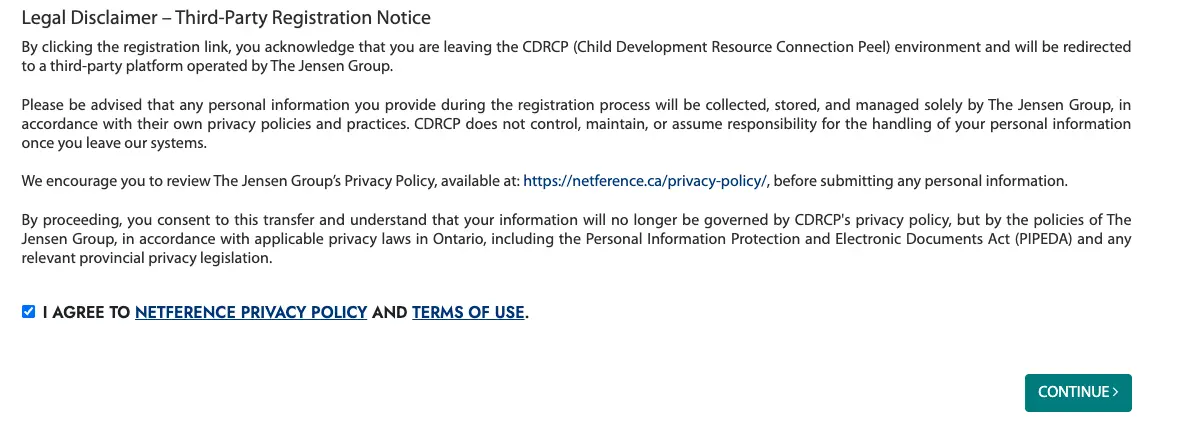
1. Read the legal disclaimer and agree to Netference Privacy Policy and Terms of Use, then click on "Continue" button:
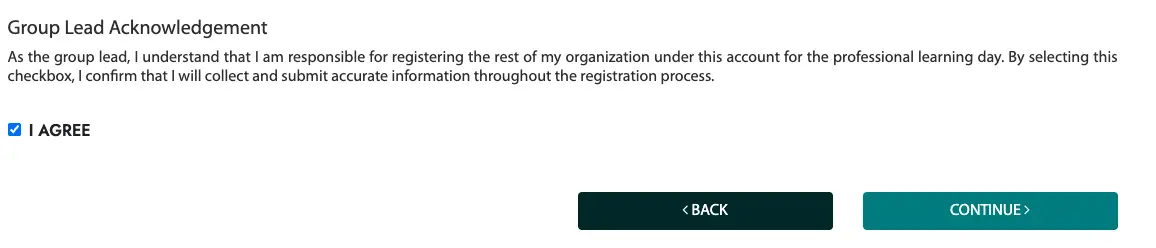
2. Read and agree to Group Lead Acknowledgement, then click on "Continue" button:
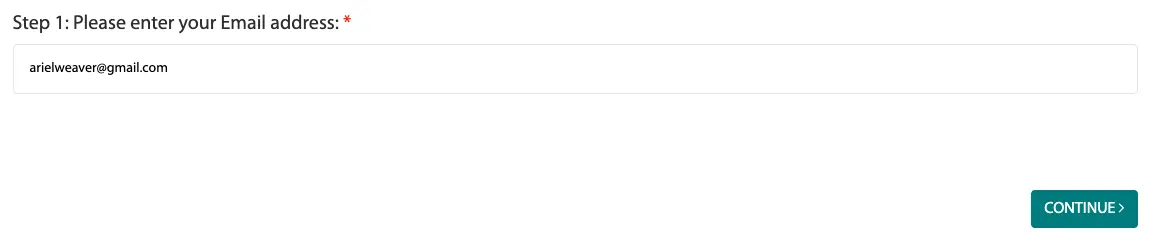
3. Enter your email address, then click on "Continue" button:
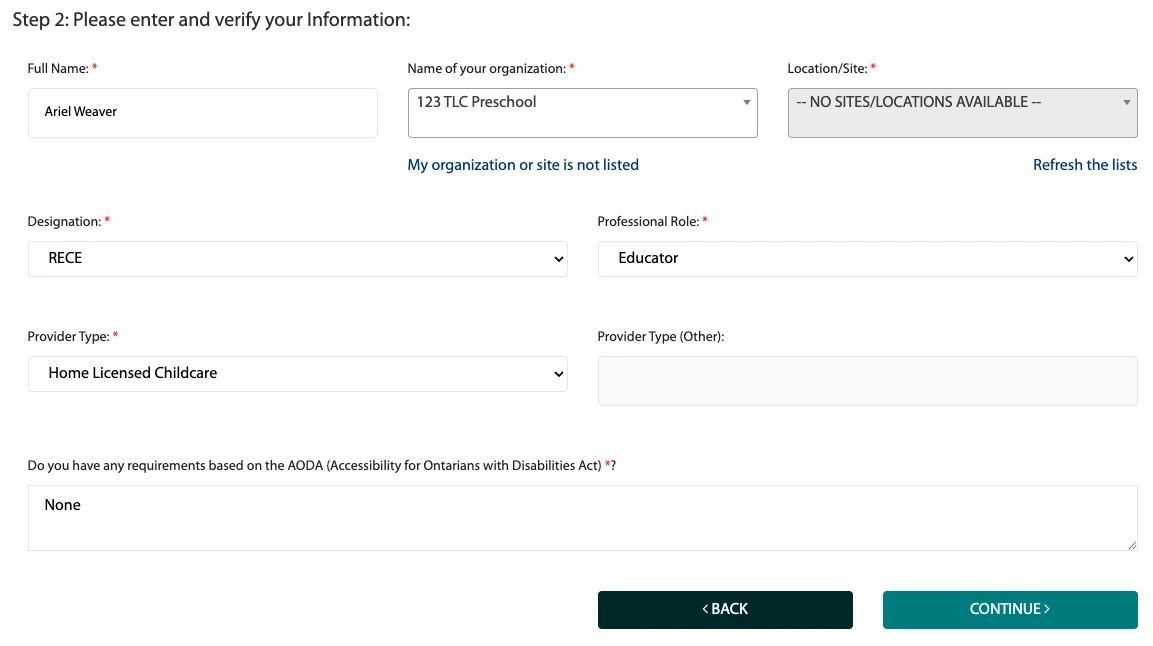
4. On the next screen, enter your full name and select your organization from the list.
If your organization has multiple Sites or Locations, a second list will appear, allowing you to select the appropriate Site or Location.
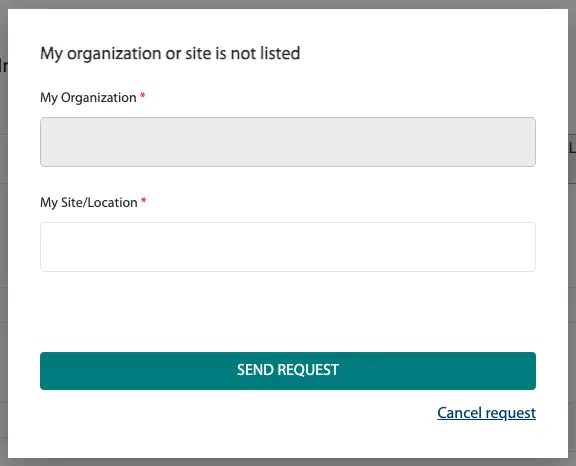
If your organization or Site/Location is not listed, click the "My organization or site is not listed" link. In the form that opens, enter the name of your organization and Site/Location, then click the "Send request" button.
One of our organizers will review your request and contact you to let you know when you can continue with your registration.
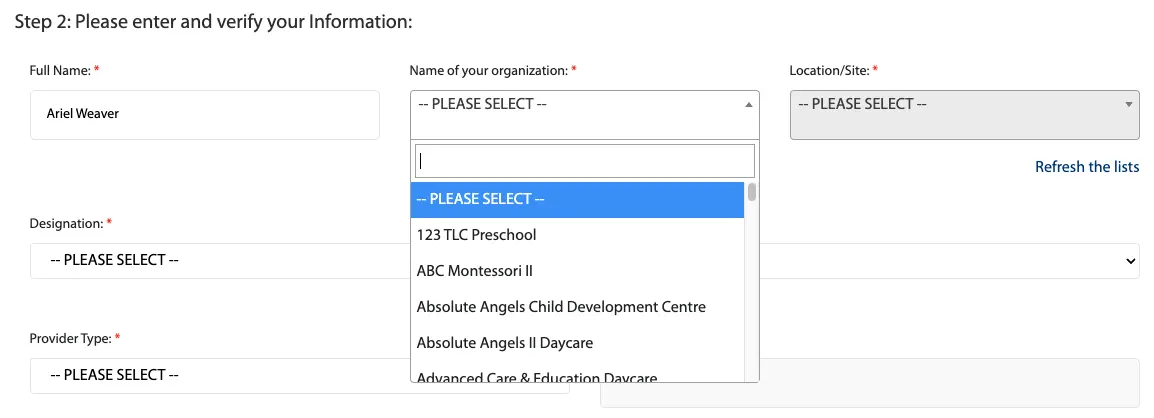
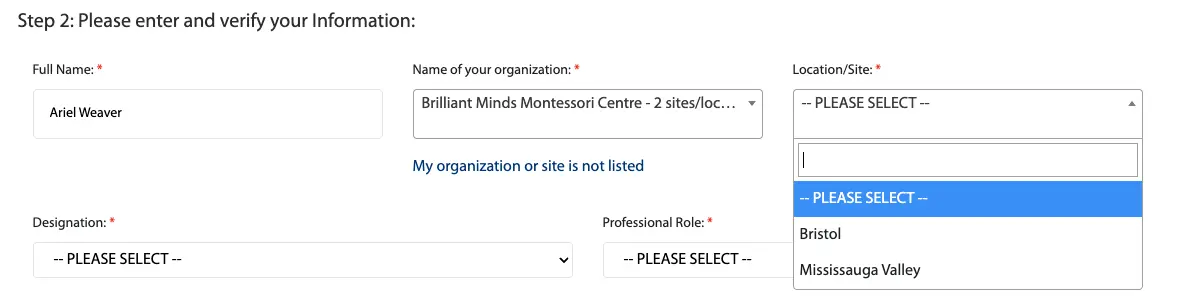
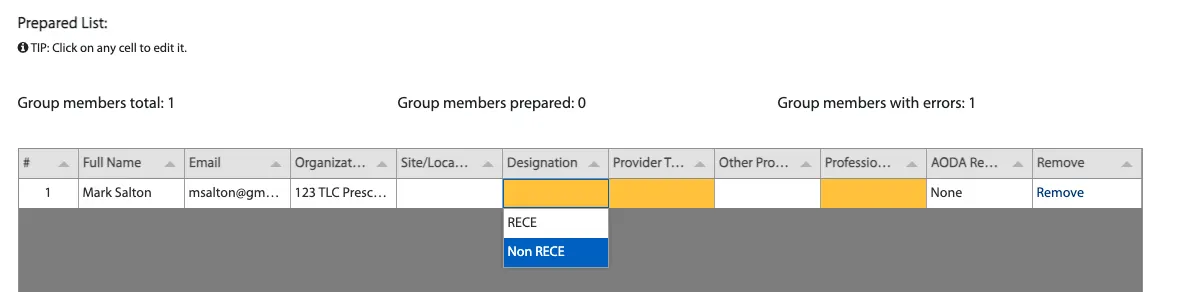
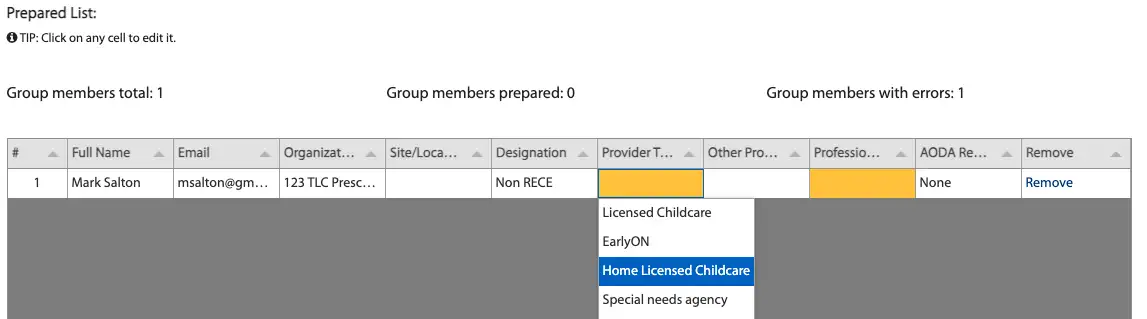
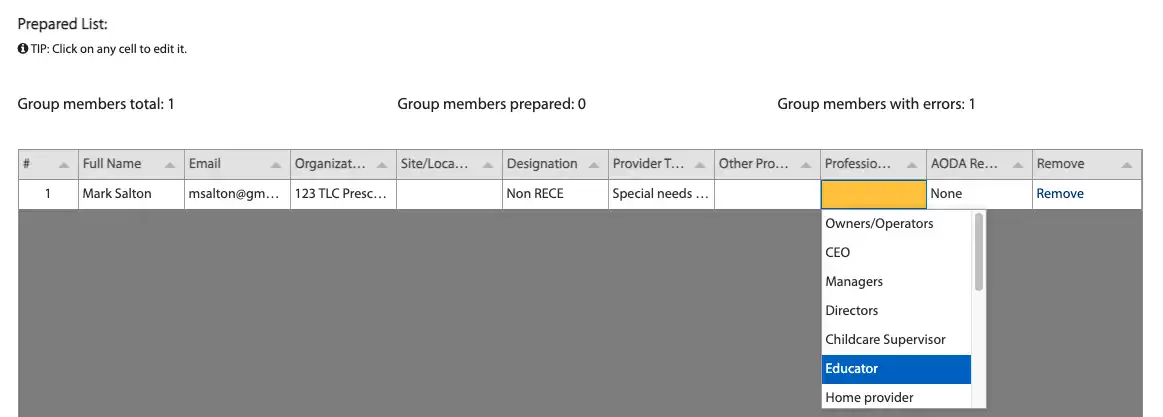
5. On the same screen, select your Designation, Professional Role, and Provider Type from the corresponding drop-down lists.
If you have any accessibility requirements under the AODA (Accessibility for Ontarians with Disabilities Act), please provide the details in the "Do you have any requirements based on the AODA (Accessibility for Ontarians with Disabilities Act)" field.
If you do not have any accessibility requirements, simply leave the value as "None."
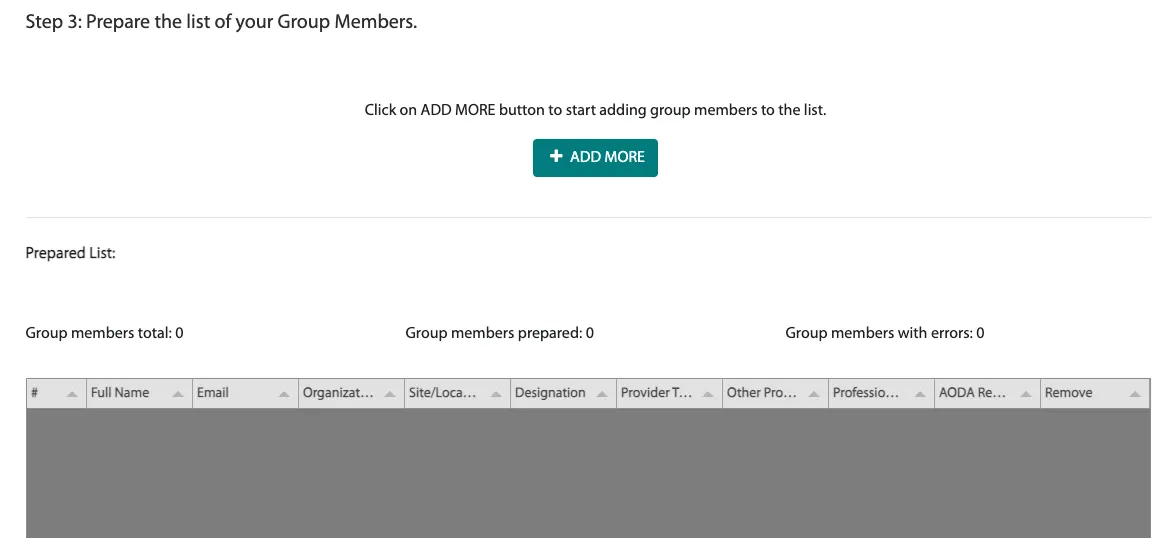
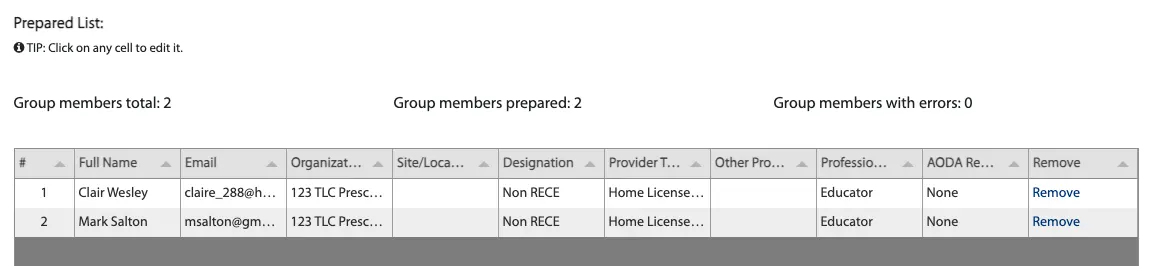
6. On the next screen, you, as the Group Lead, will need to complete the list of your Group Members.
Once you are registered, you will be able to add new members or update this list. However, during registration, you must enter the initial list of your Group Members.
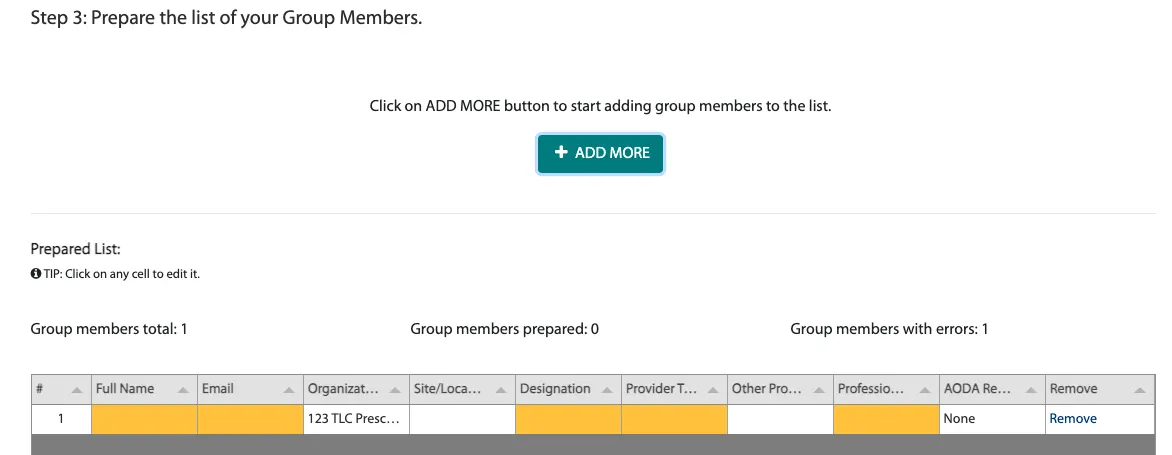
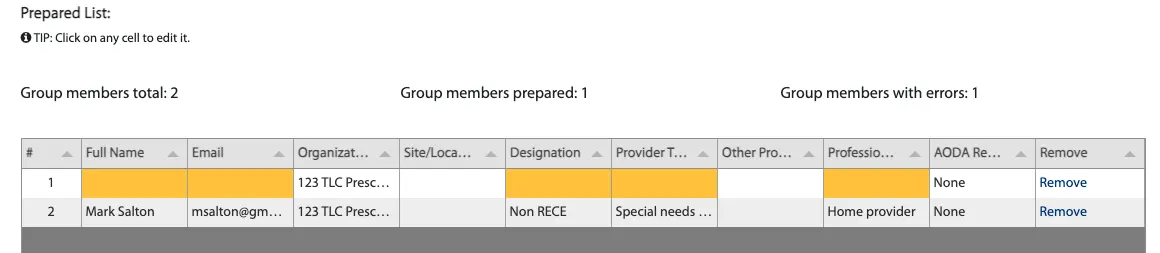
The Group Members are displayed in a spreadsheet-style table. To add a new participant, click the “+ Add More” button. A new row will appear at the top of the table. You can then click inside each cell and enter the participant’s information.
Please note that incomplete cells are highlighted in yellow.
Continue clicking “+ Add More” and entering the required information until the full list has been added. When you are finished, click “Continue” below the table. The website will then check that all required information has been entered correctly.
7. On the final screen, confirm that you have access to the email address you provided at the beginning of the registration process. Your password for accessing the website will be sent to this address.
After you click “REGISTER,” an email containing your secure login credentials and instructions will be sent to that address. You will also be signed in automatically and can begin exploring the session schedule, speaker profiles, and other areas of the website right away.
Be sure to check your email and save your password in a secure place.